Monday, 14 March 2016

Log Truncation and Log shrinking


I see a lot of post in SQL Server forums and groups asking about log truncation and shrinking , when i started my career as DBA this is was on of the main doubt i had , so let me  explain you the difference between log shrinking and log truncation

Log Truncation


We all know that log file is made of multiple Virtual Log Files, transaction log file is a wrap around file, when database is created transactions are logged at the beginning of log file and new log records are added at the end of logical log file towards the end of physical log file ,

So the VLF are reused in a cyclic fashion and the process of making a VLF which is no longer required as free or marking it as reusable is called log truncation

If there is no reusable free space available then Physical log file will expand by adding new VLF if auto growth  is enabled for log file else if  you will get an error 9002 which says that your transaction log is full

When is a log truncated

In SIMPLE recovery model log is truncated by a CHECKPOINT
In FULL and BULK recovery model log is truncated by a LOG BACKUP


So lets have a look at it, i have a database called 'test' it have 10 VLF and i made all the VLF as active by running some transactions , refer the snapshot below , i have used the command dbcc loginfo(  ) to see the the details of VLF inside my log file, here status = '2' means they are active


So why VLF's are not reused ??? Lets check it by using below query
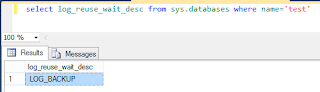
  select log_reuse_wait_desc from sys.databases where name='test'


As the output says its waiting for logbackup to mark VLF's as reusable as i said earlier for a database in full or bulk recovery model a log backup is required to truncate the log file , so here this database is in full recovery model so lets take log backup and see what's going to happen

 BACKUP LOG [test] TO  DISK = N'D:\MSSQL\Backup\test.trn' 

Now lets run dbcc loginfo and could see that 9 VLF is marked as reusable that means log file is truncated
     

Log Shrinking


So log truncation will mark VLF as reusable and this won't reduce the physical size of log file , Shrinking log file is the process of releasing space back to OS from the end of physical log file .
Shrinking  is not suggested to be done frequently until you are sure that your log file won't grow back to the size from which we are shrinking as log growth is an expensive process

So lets see the size of log file of the database 'test' after truncation using the command
dbcc sqlperf(logspace)


Here we can see that log truncation have created free space inside disk so now lets shrink the log file to release unused space back to disk using the below query

USE [test]
GO
DBCC SHRINKFILE (N'test_log' , 0)
GO

now lets check the log file space , you can see that log file have shrink to the initial value




Tuesday, 8 March 2016

Enabling Backup compression in server level


Backup compression was one of the attractive feature introduced in SQL Server 2008 Enterprise edition which is available in all edition from SQL Server 2008 R2. Compressed backup saves us both disk space and backup time with a cost of CPU consumption :)

We can take compressed backup by specifying with compression option when we take backup like mentioned below

BACKUP DATABASE [Database name] 
TO  DISK = N'Path' 
WITH COMPRESSION

Instead of specifying  compression  in each backup lets see how to make it default in instance level

1)Using SSMS

   Right click on the Instance name->Database setting and check the compress backup check box and now its done


2) Using script

      We can use the below script to enable backup compression by default in server level

  EXEC sys.sp_configure N'backup compression default', N'1'
  GO
  RECONFIGURE WITH OVERRIDE
   GO

So from now it is not required to specify with compression in each backup and if we want to take a uncompressed backup we need to specify WITH NO_COMPRESSION


So lets  see how much time and disk space compressed backup save, i will show you this my showing the values of a compressed and uncompressed backup i took


So from the above output its pretty clear  how attractive is compressed backup and i would suggest compression  to enabled in instance level as soon as we install server


Could not clear 'DIFFERENTIAL' bitmap in database because of error 9002


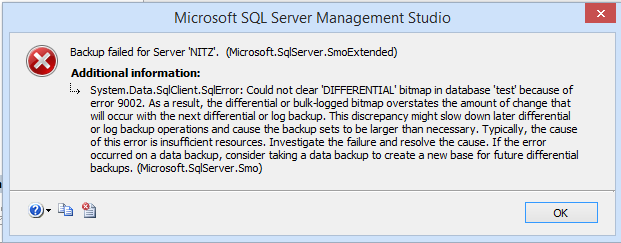
While i was doing some testing in my server i got an interesting error while taking a full backup


System.Data.SqlClient.SqlError: Could not clear 'DIFFERENTIAL' bitmap in database 'test' because of error 9002. As a result, the differential or bulk-logged bitmap overstates the amount of change that will occur with the next differential or log backup. This discrepancy might slow down later differential or log backup operations and cause the backup sets to be larger than necessary. Typically, the cause of this error is insufficient resources. Investigate the failure and resolve the cause. If the error occurred on a data backup, consider taking a data backup to create a new base for future differential backups. (Microsoft.SqlServer.Smo)

This was really an interesting error for me and had  no idea why i am getting this error while taking backup ,but i noticed one thing in the error message ' Typically, the cause of this error is insufficient resources' , Resources ehhh , whats thats??
So i started with basic check

Is there enough CPU ?? Yeah there is plenty enough 
Memory?? Enough free memory is there
Disk ?? yess.. enough to take another 30 backups
Then what else????????????????????
I missed one important thing in error message 'error 9002'
When log file is full database engine  throws error 9002
Yes there it is.... my log file is full and auto growth is disabled


But how come log space will make my backup fail?? anyway lets  give a try and initiated a log backup

OK there is no issues with my log backup and it completed successfully.. now  let me try for a full backup

There  goes my backup status 10 20 30 40 50 60 70 80 90 100 and completed successfully :)

So how come log space will cause backup failure??

So my understanding of this error we faced is that clearing differential bit map will be a logged operation so in our case there was no space to write to log file also we know a checkpoint will be triggered  when we take a backup and during checkpoint log records from log buffer will be written to log file so in this case since our log file was full and checkpoint was not able  to write log records to disk and once we took log backup there was enough space in log file and every thing went smooth then


Tuesday, 19 January 2016

Scripting out a Database without data

I got a request from development team that they want the structure of a database to be migrated to a different instance   and they  were specific that they don't want it to have any data , so let see how can migrate a database without data

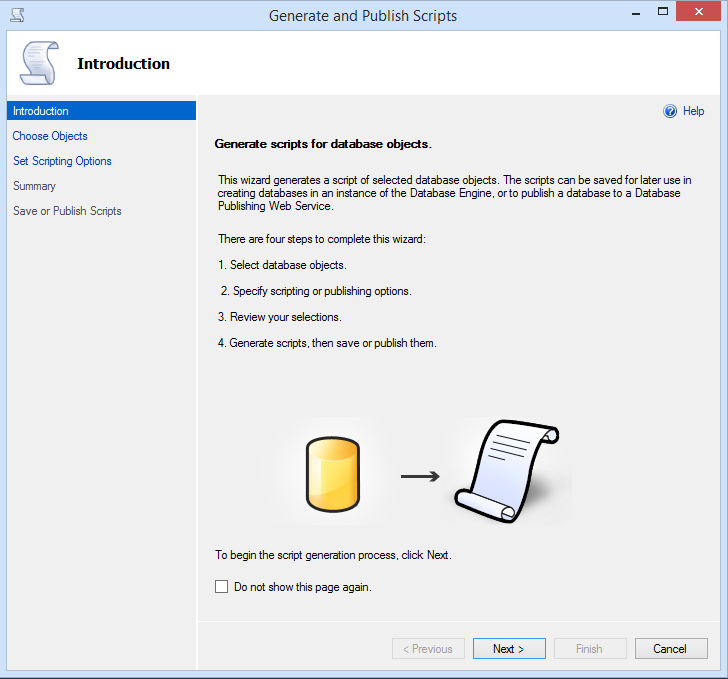
First lets Connect to source instance and script out the database as shown below

1)

This will open up a window which will help us to generate script
2)
     

3)From the below screen you can choose whether you want entire database or specific object , here i have chosen entire database

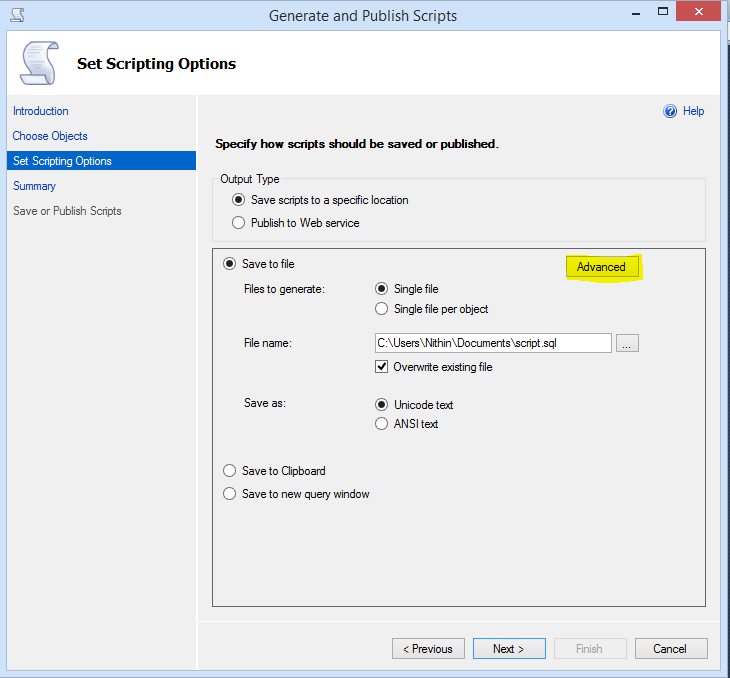
4)In this page we can select how we want the output script, here i am scripting it out to an output file  and then chose the advanced option , here we will chose whether we want to script out complete data or just schema or entire database


5)From the advanced options select schema only


6)In the next page we can review the options we have selected

9) Now we have generated the schema only script of the database


Now Connect to to destination instance you want to create the database open the script and change the data file and log file path as of your destination instance and run the script and its done :)

Tuesday, 12 January 2016

Configuring Logshipping


Log shipping works on log backup and restoration , where log backup is taken in primary database , copied to secondary database and restored in secondary database in non recovery or standby mode so that further log backups can be restored

So we can split log shipping in to 3 process

1)Log backup in primary
 
       There will be a log backup job in primary server so this job will take log backup based on the schedule we have given

2) Copy from production to secondary server
 
     This job is located in secondary server and it will copy the log  backup from primary server to secondary , for this secondary server sql agent's service account should be having the read permission in the folder where log backups are kept in primary server

3)Restoring log backup in secondary server
 
     This job is located in secondary and it will restore copied log backup in no recovery or stand by mode

We have job in log shipping to do these process
1)Log backup job (In primary)
2)Copy Job(In secondary)
3)Restore job(In secondary)
4)Alert job(Raise alert in primary and secondary when backup or restore doesn't complete sucessfully within a specified threshold)

Now lets look at how to configure log shipping

Before we begin

1)Before configuring Log shipping make sure your primary database is in full recovery model if not change it to full recovery model with below TSQL
 ALTER DATABASE [database name] SET RECOVERY FULL WITH NO_WAIT
2)I normally take a full backup of primary database and restore in secondary with no recovery        manually before configuring  log shipping as i feel more comfortable with it if you want you can do this while configuring log shipping

Configuring log shipping

1)Log shipping configuration can be opened from database properties[right click(database)->properties] or from [right click(database)->task->ship transaction logs

2)Check Enable this as primary database in log shipping check box as show in below image


3)Now let us do backup setting ,click on backup settings

  • Here we need to specify the network path of the backup folder and service account of  sql agent of primary should be having read write permission and secondary instance should be having read  permission in this folder
  • If the backup path is on primary server you can give the local path even though it is not mandatory
  • You can specify how old log backup should be deleted and the threshold of alert
  • Now decide how frequently the backup should happen and schedule the backup job

Now we have done the backup configuration

4) Now lets add secondary instance and database by clicking add button

    4.1 Initialize the secondary database you can do it by taking a fresh backup or by using an already             existing backup or chose already existing database if you have restored database before                       configuring log shipping

   4.2  In the copy file setting specify the folder in the secondary server the backup to be copied and               how frequently the copy should happen


 4.3 In the restore transaction log tab you can chose whether you want the secondary database to be in        restoring mode or standby mode and specify how frequently the restore job should happen


   Click ok  and we have successfully configured log shipping

Friday, 27 November 2015

Finding Recovery model of database

In our day to day activities  recovery model is a very important thing to be noted while dealing with database and appropriate recovery model should be set based on the requirement of the database , here lets see a few methods to find the recovery model of the databases

1)Database properties

    We can find the recovery model of a database by checking the option page in database properties, we can also change the recovery model form here,


2)Querying sys.databases view

    This is one of my favorite method as it offers me the flexibility of querying the required data like if i want to view only databases that are in full recovery i can query this view to get only the output i requires


3)Using built function databasepropertyex()

     We can find the recovery model by giving the databasename and recovery as parameter to this function  , databasepropertyex(database,recovery)


4)Viewing in object explorer details

     We can get recovery model of all the databases in an instance in object explorer details when we click on the database in object explorer, if the object explorer details in not visible we can make them visibile from view or by pressing shortcut 'F7'


Thursday, 26 November 2015

Finding instances Installed in a server


In some situations we may need to find  the  instance installed in a server especially when some urgent request comes and we are not aware of the setup , so let me share a few methods i used to find the the instance names, i will be thankful if you can share me some other methods you follow

1)SQL Server Configuration manager

    This a much familiar method if we open sql server configuration manager we can see the instances installed in our server, in the below screenshot you can see the two instances in my system the default instance and the named instance'TEST'
We can open configuration manager from run for by giving below commands in run depending on the version
sqlservermanager11.msc -- SQL Server 2012
sqlservermanager10.msc -- SQL Server 2008
sqlservermanager.msc     --  SQL Server 2005


2)Services Console
 
  We can view the instance in system from services console which can be openend by giving services.msc in run ,in the below screenshot you can see the two instances in my system listed in services console


3)SQL cmd

   We can list the instances in our system using sqlcmd , for this we can use the command sqlcmd -L (L should be in upper case )in the command prompt, in the below snap shot you can see the instances in my system


4)Registry editor

  By navigating to the below given location in registry editor you can see the name of the instances installed in your server,
'HKEY_LOCAL_MACHINE\SOFTWARE\Microsoft\Microsoft SQL Server\Instance Names\SQL'
in the below screenshot you can see the two instances in my system


Sunday, 1 November 2015

Reading error log with xp_readerrorlog


Most of us are used with reading error logs through GUI , but when we are really in looking for something in error logs TSQL may seems more use full , so lets look how to analyse log file using xp_readerrorlog

EXEC xp_readerrorlog a,b,c,d,e,f,g

a- Value of log file you want to read ,0 for current, 1 for Archived 1,2 for Archived 2 etc
b-We can chose between error log and agent log here
      1- for error log [default]
      2- for agent log
c-search string which you want to look in log
d-we can give one more string , this can refine the output we got by giving the search string C
e- Here we can from which time's log we want to search
f- Here we can give the to which time's log we want to search
g- Here we can specify whether we want output in ascending or descending order by specifying 'ASC'and 'DESC'

Lets have a look at few examples


Here this will query in Archive #1 error log and will search for logs with word "log" and which are logged after 2015-10-13 and will list the output in ascending order


In the above example we are querying in Archive#2 Agent log , it will search for logs containing both the search strings "error" and "network" which are logged between 2015-09-20 and 2015-09-24 and will list the output in descending order 


Saturday, 10 October 2015

Cycling SQL Server error log


It is a good practice to cycle sql server error log as also it is easy to handle error logs of small size , By default sql server will only cycle error logs once its starts , so for easy managing of error logs its better to cycle error logs , in most of the productions system we create job to cycle error logs  that runs daily /weekly/ monthly depends on the volume of contents that will be written to the error logs. Once the error log cycle the current error log is renamed as errorlog.1 ,

We can use stored procedure   ' sp_cycle_errorlog' to cycle error log , members of sysadmin fixed roles can trigger this procedure , so by using the below T-sql we can cycle the error log 

exec sp_cycle_errorlog
go

By creating a job with above query we can automate this task 

By default sql server retains current and 5 recent error logs , this can be changed in SSMS by expanding Management\Sql Server log [right clich ] -> configure select Limit The Number Of Error Logs Before They Are Cycled, and select the maximum number of error logs, as shown in  Figure , Minimum limit is 6 and maximum is 99